Find by ID in Links
Find an element by ID in linked models
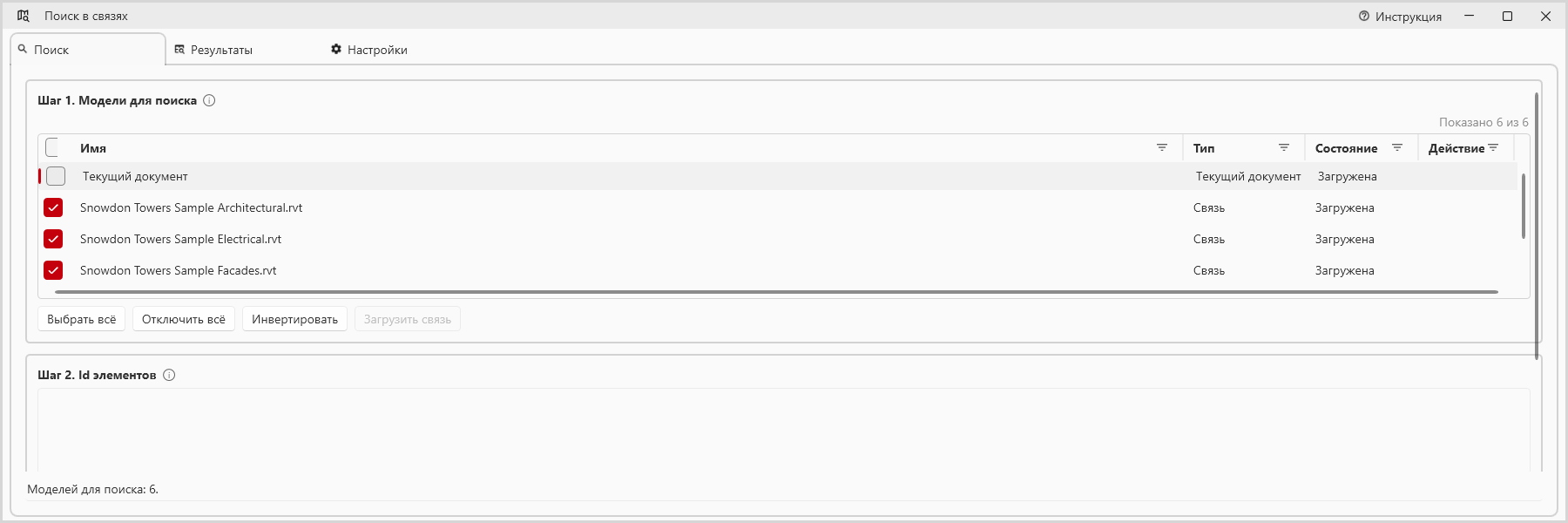
What it solves
Finds elements by ID in the current document and links, shows the result in 3D and can pick an element from a link to get its ID.
How it is used
- Batch IDs: lists and ranges
- 3D framing of the result
- Reverse lookup of an element from a link
Getting started
- Download and install BimContour — every plugin comes with one installer.
- Open Revit and the BimContour tab on the ribbon.
- Run the plugin: the “Guide” button in the window opens step-by-step help.
Compatibility
Autodesk Revit 2022–2027; Windows 10/11.
Plugin results are for reference: verify them before using them in project documentation and keep backups of your model.
Reviews and rating
No reviews yet. Be the first — your review will appear after moderation.
Sign in to leave a review.
More plugins in this category
- Model Setup — start a model to the studio standard
- Model Comparison — compare two versions of the same model
- Smart Contours — crop a view to its content and build the union floor contour
- Smart Marks — room tags without overlapping elements